When I wanted to create a WordPress theme with Tailwind, I used to spend more than 2 to 3 hours building it, but I still couldn’t achieve the result I wanted. Then I discovered a beautiful tool for creating a starter theme with Tailwind.
In this blog, I will walk you through the process—from generating your theme to customizing it for your project.
The tool I’m talking about is UnderscoreTW(_tw).
What is UnderscoreTW (_tw)?
_tw is a WordPress starter theme generator inspired by the popular Underscores (_s) starter, but specifically optimized for Tailwind CSS, Tailwind Typography, and modern WordPress development workflows. It comes pre-configured for Tailwind, supports the WordPress block editor, and includes a streamlined build process
Step-by-Step Guide
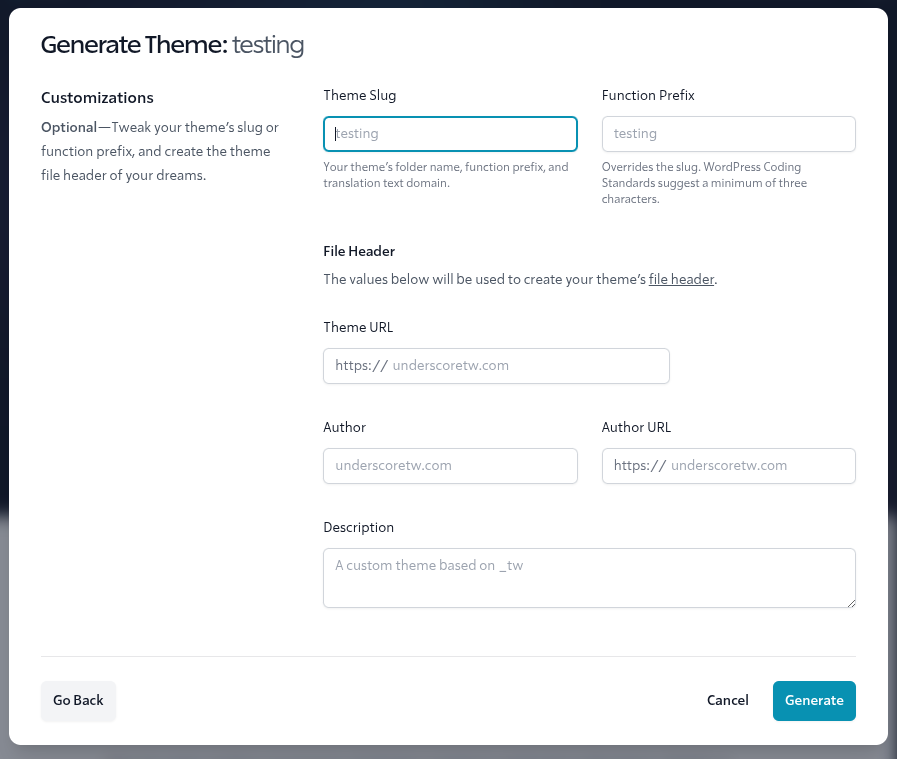
1. Generate Your _tw Theme
- Visit the _tw generator at underscoretw.com and create your custom starter theme1.
- Download the generated theme ZIP file.
2. Install the Theme
- Extract the ZIP and move the theme folder into your
wp-content/themesdirectory. - In your terminal, navigate to the theme directory and run:
npm install && npm run devThis installs dependencies and builds your initial Tailwind CSS
3. Activate the Theme
- Go to your WordPress admin dashboard and activate your new _tw theme under Appearance > Themes
4. Start Development
- Run the development watcher to auto-build CSS and JS as you edit:
npm run watchAdd Tailwind utility classes directly in your PHP templates and block editor components
5. Customize Tailwind and Theme Settings
- Edit
tailwind.config.jsto adjust your Tailwind setup, safelist classes, or add plugins (like Tailwind Typography) - Use
theme.jsonto define color palettes, spacing, and other design tokens for both Tailwind and WordPress
6. Enqueue Styles and Scripts
- _tw handles enqueueing the compiled CSS and JS automatically. If you’re building your own workflow, ensure your
functions.phpenqueues the output CSS:
wp_enqueue_style( 'output', get_template_directory_uri() . '/dist/output.css', array() );7. Build for Production
- When ready to deploy, run:
npm run bundleThis creates a production-ready ZIP for upload or deployment
Key Considerations
- Editor Styles: _tw generates a separate CSS file for the block editor, ensuring consistency between front-end and editor views
- Class Availability: Only Tailwind classes present in your theme files are included in the final CSS. If you need to use custom classes in the block editor, safelist them in your Tailwind config3.
- Full-Site Editing: _tw currently supports hybrid themes with
theme.jsonintegration but not full-site editing, which is still evolving in WordPress
Using the _tw starter theme is the fastest, most reliable way to build a WordPress theme with Tailwind CSS in 2025. It eliminates the friction of manual configuration, supports modern WordPress features, and lets you focus on design and functionality
If you’re looking for a lean, hackable base for your next WordPress project, _tw is the new gold standard for Tailwind-powered development.