Sometimes you may want to host a font locally, instead of using a service like Google Fonts. This article will take you through the steps to do this.
For the purpose of this article, we’ll be using Google Fonts. However, this process will work for any kind of font file you might have.
Downloading our font
Visit this site:https://gwfh.mranftl.com/fonts and search for your font.
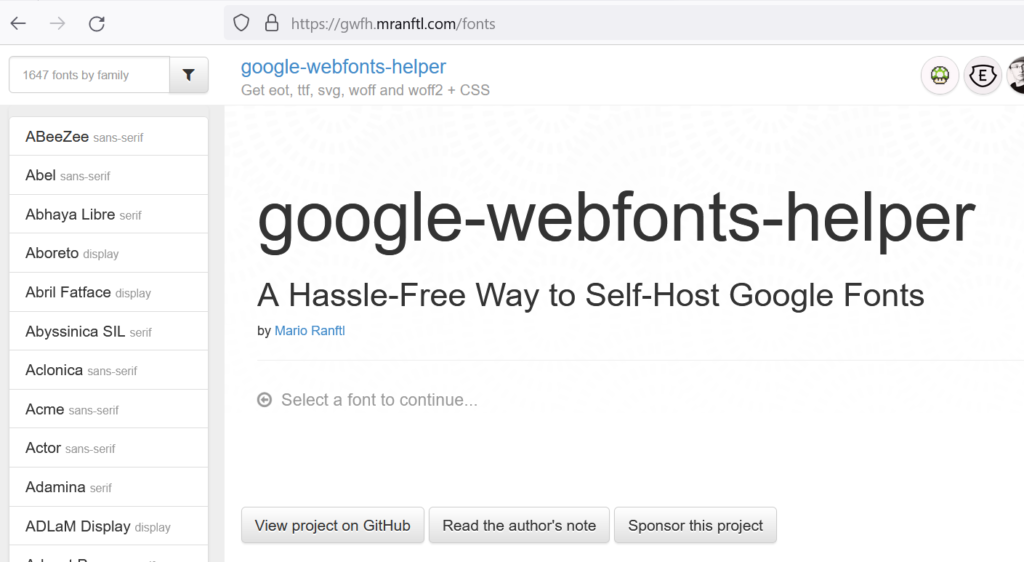
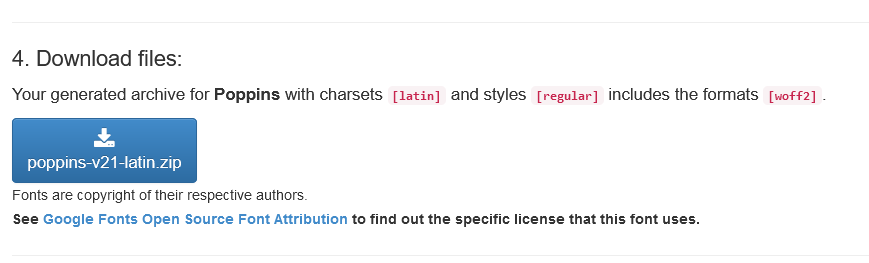
Once you choose the font you want then select font weight and style you wanted then click on download button further down.
Uploading our font
Note: If you’re comfortable with uploading files to your server via FTP, you can skip this step and simply upload your font files to your child theme.
Now that we have our font files, we need to upload them to our server.
By default, the WordPress Media Library doesn’t allow us to upload font files. This is due to security concerns with some of these files.
However, we can temporarily allow these files to be uploaded by adding the below function to our website. Once we’re done, it’s best to remove this function.
//functions.php

add_filter( 'upload_mimes', function( $mimes ) {
    $mimes['woff']  = 'application/x-font-woff';
    $mimes['woff2'] = 'font/woff2';
    $mimes['ttf']   = 'application/x-font-ttf';
    $mimes['svg']   = 'image/svg+xml';
    $mimes['eot']   = 'application/vnd.ms-fontobject';

    return $mimes;
} );
Now we can upload our font files into the Media Library.
After uploading these font you will get parmalink like this
http://font-hosting.local/wp-content/uploads/2019/02/poppins-v21-latin-regular.woff2Now, let’s remove the filename, and take note of the URL for the next step.
http://font-hosting.local/wp-content/uploads/2019/02/Using @font-face
Alright, we’re almost done! Now we need to reference our fonts in our CSS.
Let’s go back to our Google Fonts Helper website where we downloaded the font files, and head back up to step 3.
Under all of the CSS, you’ll see a field for the folder prefix. In there, we’re going to add the URL we took note of above.
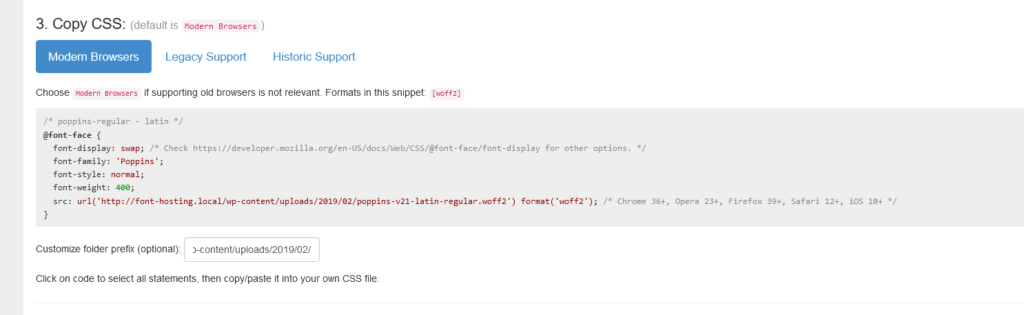
Now above this field, copy all of the provided CSS, and add it to your website.
Now you use these font anywhere like this
body {
    font-family: 'Poppins', sans-serif;
}
Learn More About this: https://docs.generatepress.com/article/adding-local-fonts/
Gfont link: https://fonts.google.com/