Core Concepts
- Using React Native Components & Building UIs
- Styling React Native Apps
- Adding Interactivity & managing State
In this we are building a very simple Todo App.
Components:
- Text, View: these building react native components.

Styling in ReactNative

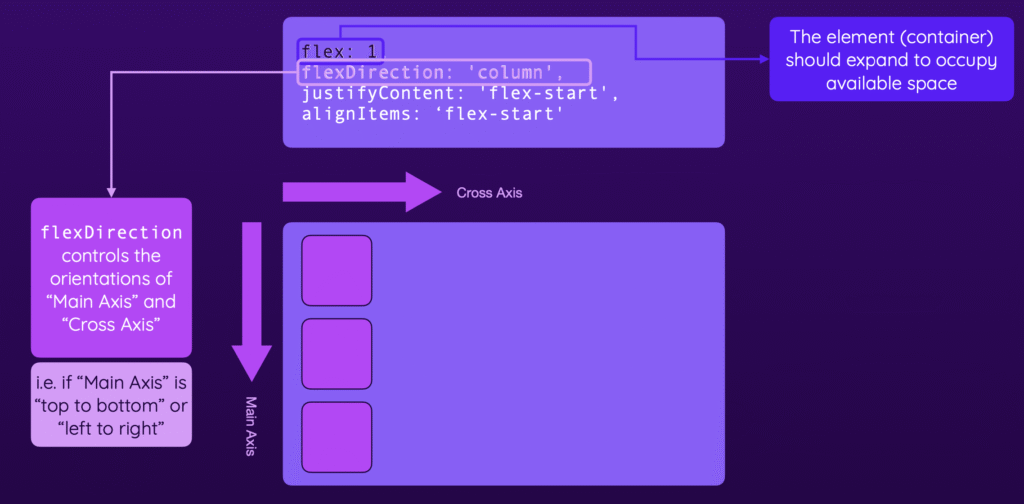
Layouts & Flexbox
How to make screen Scrollable
To make a screen scrollable in React Native, you should use the built-in ScrollView component. This component allows your content to scroll vertically or horizontally if it exceeds the screen size
Basic Usage
Here’s how you can make a screen scrollable:
import React from 'react';
import { ScrollView, View, Text, StyleSheet } from 'react-native';

const MyScreen = () => (
  <ScrollView style={styles.container}>
    {/* Your content goes here */}
    <View>
      <Text>Item 1</Text>
      <Text>Item 2</Text>
      {/* Add as many items as needed */}
    </View>
  </ScrollView>
);

const styles = StyleSheet.create({
  container: {
    flex: 1,
  },
});

export default MyScreen;
React Native: Model
In React Native, a modal is a component that displays content above the main application UI, typically to capture user attention for important information, actions, or workflows. The core Modal component is part of React Native’s standard library and can be used to create dialogs, pop-ups, or overlays.
Basic Usage
You can import and use the built-in Modal component as follows:
import React, { useState } from 'react';
import { Modal, View, Button, Text } from 'react-native';

function App() {
  const [visible, setVisible] = useState(false);

  return (
    <View>
      <Button title="Show Modal" onPress={() => setVisible(true)} />
      <Modal visible={visible} animationType="slide" transparent={true}>
        <View>
          <Text>This is a modal!</Text>
          <Button title="Hide Modal" onPress={() => setVisible(false)} />
        </View>
      </Modal>
    </View>
  );
}