As a WordPress Developer, you might encounter Cross-Origin Resource Sharing (CROS) error when making requests to your WordPress site from a different origin, such as a front-end application built with React or another JavaScript framework.
In fact they are important security feature designed to protect users from malicious attacks.
Let’s understand what is CORS?
CORS stands for Cross-Origin Resource Sharing. It is a security feature implemented by web browsers that restricts web pages from making requests to a different domain than the one that served the web pages.
For example, if your WordPress site is hosted on https://example.com and your React application hosted on http://localhost:3000, the browser will block requests from the React Application to the WordPress site.
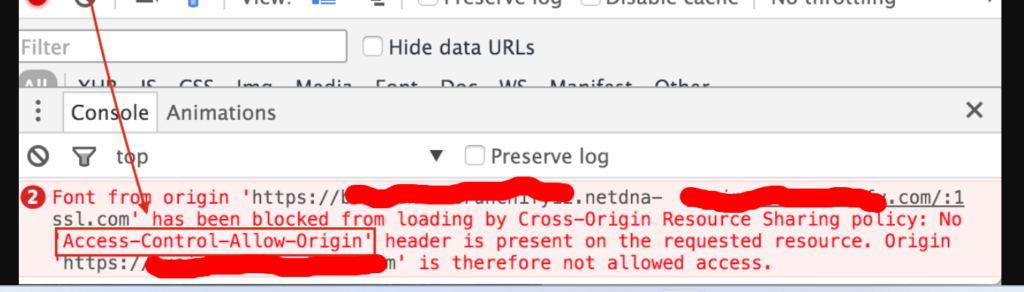
Resolving CORS Errors in WordPress
To resolve CORS errors in a WordPress environment, you need to ensure that your server includes the appropriate CORS headers in its responses. Here are several methods to achieve this:
1. Modifying the functions.php File
You can add code to your theme’s functions.php file to include the necessary CORS headers. Here’s an example:
function add_cors_http_header() {
    // Allow from any origin
    header("Access-Control-Allow-Origin: *");

    // Allow specific methods
    header("Access-Control-Allow-Methods: GET, POST, OPTIONS, DELETE, PUT");

    // Allow specific headers
    header("Access-Control-Allow-Headers: X-Requested-With, Content-Type, Accept, Origin, Authorization");

    // Handle preflight requests
    if ($_SERVER['REQUEST_METHOD'] == 'OPTIONS') {
        header('Access-Control-Max-Age: 86400'); // Cache for 1 day
        header("Access-Control-Allow-Credentials: true");
        exit(0);
    }
}

add_action('init', 'add_cors_http_header');
This code sets the Access-Control-Allow-Origin header to allow requests from any origin. You can replace * with a specific domain if you want to restrict access.
2. Using a WordPress Plugin
There are several WordPress plugins available that can help manage CORS settings without requiring you to modify the functions.php file. One such plugin is WP CORS. To use this plugin:
- Install and activate the WP CORS plugin from the WordPress plugin repository.
- Navigate to Settings > CORS.
- Configure the allowed origins, methods, and headers according to your requirements.
3. Configuring the .htaccess File
If you have access to the server’s .htaccess file, you can add the following directives to include the necessary CORS headers:
<IfModule mod_headers.c>
    Header set Access-Control-Allow-Origin "*"
    Header set Access-Control-Allow-Methods "GET, POST, OPTIONS, DELETE, PUT"
    Header set Access-Control-Allow-Headers "X-Requested-With, Content-Type, Accept, Origin, Authorization"
</IfModule>
Again, replace * with the specific domain you want to allow.